Password Manager: What It Is and How to Choose One
November 15, 2026
You have dozens of online accounts and only one memory. So you end up reusing the same password, or two versions that are barely different. A password manager solves the problem simply: it remembers everything for you, and does it securely. In this guide you’ll see what a password manager is, how it works, how to choose one and how to switch in a single afternoon, without the stress.
What is a password manager and how does it work?
It’s an app that stores your logins in an encrypted vault. Inside, you keep passwords, secure notes, card details and recovery codes. From the outside, nobody can read them.
It rests on three pillars:
- The vault: an encrypted archive on your device that only opens with the right key.
- The master password: the only one you have to remember. It unlocks everything else.
- Syncing: the vault, always encrypted, is copied across your devices. Your phone, computer and tablet stay in step.
When you visit a website, the app offers to fill in the fields for you. If the web address doesn’t match the one you saved, it fills in nothing. That’s a useful defense against fake sites that imitate the real ones.
Why a password manager is safer than reusing passwords or saving them in your browser
Reusing the same password is the most common risk. If one site is breached, criminals try those credentials elsewhere. It happens automatically, on a large scale. A single mistake can open up your email, social media and bank.
A password manager generates a different, long, random password for every account. You don’t remember them and you don’t need to. If a site leaks its data, the damage stays limited to that one site.
And what about saving passwords in your browser with no extra protection? It’s better than nothing, but it has limits:
- if someone uses your computer while it’s unlocked, they can see your saved passwords;
- if you haven’t set a password or fingerprint lock, access is far too easy;
- the security controls and sharing features are often more limited.
A dedicated manager asks you to authenticate every time you unlock it, and it offers tools built specifically for security.
How to choose a password manager: the criteria that matter
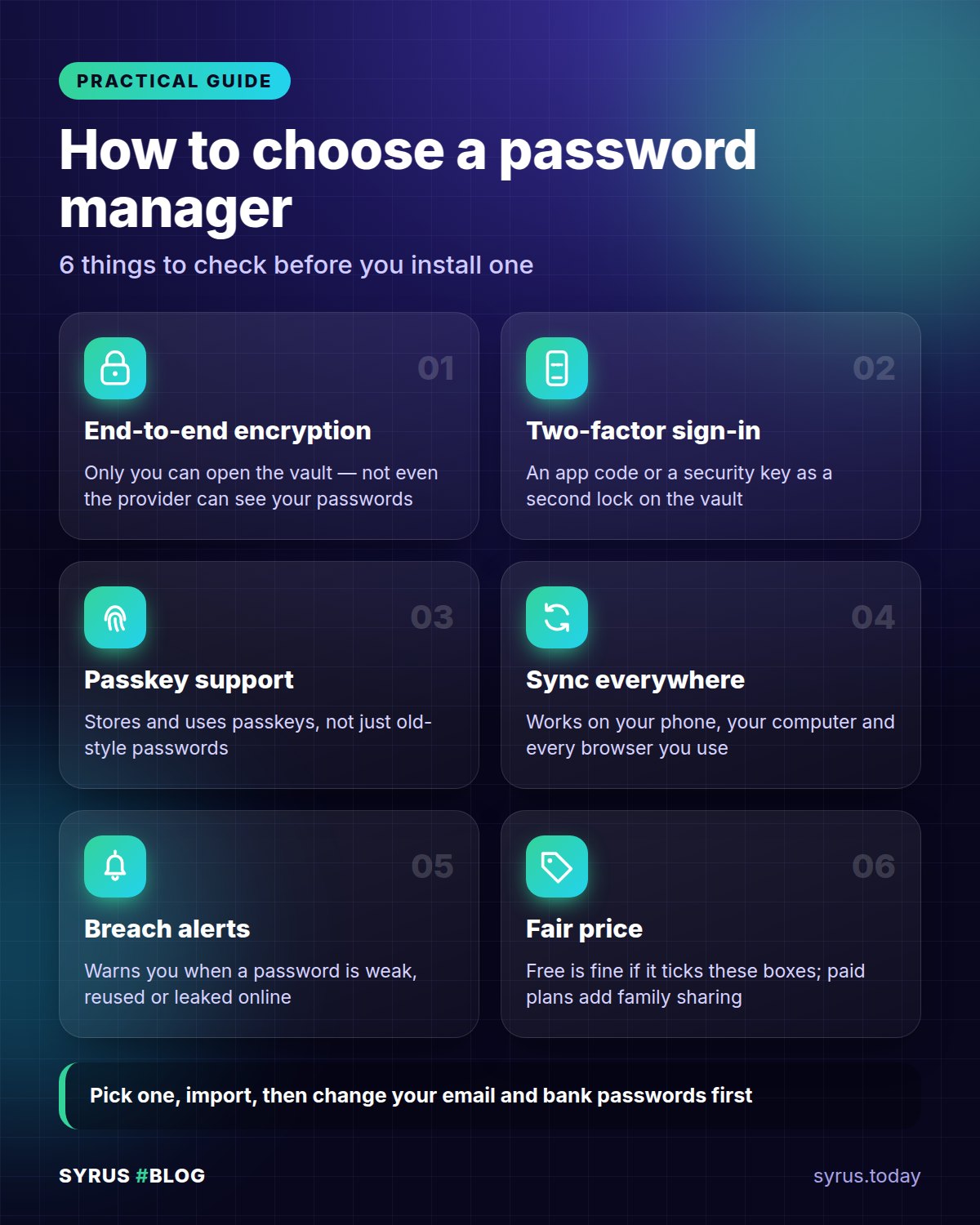
You don’t need to hunt for the perfect product. Check these points:
- End-to-end encryption and zero-knowledge: your data is encrypted on your device. The provider can’t read it, even if it wanted to.
- Independent audits: look for published security reviews carried out by outside experts. Even better if the code can be inspected.
- Two-factor authentication: it should be able to protect access to your vault, using an authenticator app or a physical key.
- Passkey support: passkeys are the future of logging in. If you want to know what they are, read our guide to passkeys and how to turn them on.
- Breached password alerts: the manager should flag passwords that are weak, repeated or have appeared in data leaks.
- Family sharing: handy for Wi-Fi, subscriptions and shared accounts, without sending passwords in chats.
- Platforms: it should work on all your devices and the browsers you use.
Free or paid? And what about the built-in system or browser manager?
Free versions are often enough to get started: unlimited passwords across several devices, a generator and autofill. A paid plan usually adds family sharing, file attachment storage, advanced controls and support.
Be wary of anyone offering everything for free without explaining how they stay afloat. A serious service states its business model clearly.
There’s also the option of a manager built into your operating system or browser. For many people it’s a valid choice, especially if you always stay in the same ecosystem. It’s convenient and already there. It works well if:
- you protect it with a strong screen lock and identity verification;
- you turn on two-factor authentication on the account that syncs it;
- you don’t often switch device or browser brands.
If you mix different systems, an independent manager is more flexible.
How to switch to a password manager in one afternoon
Two or three hours is all you need. Go step by step:
- Pick your manager using the criteria above and install it on your computer and phone.
- Create your master password. See the next section.
- Import the passwords already saved in your browser. The manager usually offers a guided process or import from a file. After importing, delete that file from your computer and empty the trash.
- Change your critical passwords first: main email, bank and social media. Use the generator and choose long, random passwords.
- Turn on 2FA for those same accounts.
- Save the recovery codes that services show you.
- Delete the passwords from your browser, so you don’t have two stores.
You’ll do the rest over time. Each time you log in to an old site, the manager reminds you to update the password.
Your master password and recovery codes
The master password is the key to everything. It should be long, unique and easy for you to remember. The trick is to use a passphrase:
- choose four or five unrelated words;
- add a few separators or a number;
- avoid famous quotes, birthdays and family members’ names.
Never use it anywhere else. Write it on paper the first time and keep it somewhere safe at home, then learn it by heart and destroy the note, or keep it well guarded.
Then there’s 2FA, the second step after your password. For email, banking and social media, prefer an authenticator app or a physical key over text messages, which are less robust.
The recovery codes are there for if you lose your phone or your access. Keep a printed copy in a safe place. If you store them only inside the manager and lose access to the manager, you’re locked out of everything.
For social media, look in the security settings of WhatsApp, Instagram and Facebook for the two-step verification option. Each app words it slightly differently, but the path is similar.
Mistakes to avoid
- A weak master password or one reused elsewhere.
- No 2FA on your manager account and your email.
- No recovery codes stored outside the manager.
- Leaving the import file on your computer.
- Unprotected devices: without a screen lock and updates, the manager is less effective. If you suspect your phone is compromised, read how to tell if your phone is being spied on before moving your passwords over.
- Sharing passwords in chats or email, instead of using the manager’s sharing feature.
- Clicking suspicious links even with a manager running. If your data has been stolen or you’ve fallen victim to a scam, in the US you can report it to the FTC at reportfraud.ftc.gov; in the UK, to Action Fraud (actionfraud.police.uk); and you can always contact your local police.
Frequently asked questions
What if the password manager provider is attacked?
With zero-knowledge encryption, thieves only find encrypted data. Without your master password, it’s unreadable. That’s why it matters so much that yours is long and unique.
What if I forget my master password?
Often it can’t be recovered, precisely because the provider doesn’t know it. Some services offer an emergency key or a trusted contact. Set these options up right away and keep your recovery material somewhere safe.
Isn’t putting everything in one place risky?
There is a risk, but it’s far smaller than the risk of weak, repeated passwords. With a strong master password and 2FA, the vault remains a hard target.
In summary
A password manager lets you have a different, strong password for every account while remembering only one. Choose a service with end-to-end encryption, independent audits and 2FA. Your system’s built-in manager may be enough if you stay in a single ecosystem. Start with email, bank and social media, turn on two-step verification and keep your recovery codes safe. In one afternoon, you’ll have taken the most useful step for your online security.