Passkeys Explained: What They Are and How to Set Them Up
November 7, 2026
Forgotten passwords, text message codes that never arrive, accounts stolen through a fake login page: for years we have put up with a system that simply doesn’t work. The good news is that there is a simpler and far more secure alternative, and your phone probably supports it already. It’s called a passkey.
In this guide we explain what passkeys are, why they are safer than passwords, how to set them up on Google, Apple, WhatsApp, Microsoft and the other services you use every day, and what happens if you lose your phone.
What are passkeys? A simple explanation
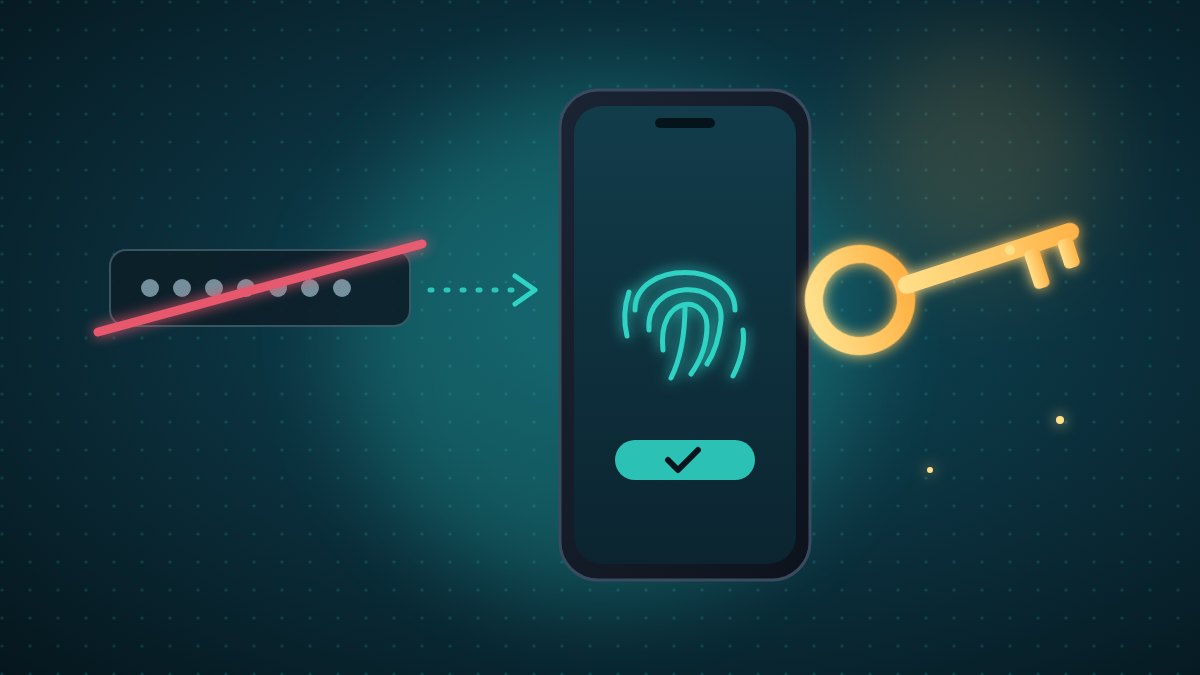
A passkey is a “digital key” that replaces your password. Instead of typing something you have to remember (and that someone can steal), you approve the sign-in with what you already use to unlock your phone or computer: your fingerprint, your face or your device PIN.
Behind the scenes, every passkey has two parts:
- a public key, which stays with the website or app you sign up for;
- a private key, which stays on your device (or in your password manager) and is never sent to anyone.
When you sign in, your device proves that it holds the private key without ever revealing it. Your face or fingerprint never leaves your phone: it is only used to unlock the key locally.
Passkeys are built on an open standard developed by the FIDO Alliance together with the major technology companies, which is why they work on Android, iPhone, Windows, Mac and the most popular browsers.
Why passkeys are safer than passwords
1. They can’t be stolen with a fake page
Every passkey is tied to the genuine domain of the service. If a phishing message sends you to a site imitating your bank, the passkey simply won’t work there: there is nothing to “hand over” to the scammer. It is the most effective defense against phishing, including the AI-written kind we covered in our guide to AI-powered scams.
2. There is nothing to guess or reuse
No weak passwords, no “same password everywhere”. Each passkey is unique to each service and generated automatically.
3. A data breach at the website doesn’t expose you
If a service is hacked, criminals only find public keys, which are useless for getting into your account.
4. They’re faster
One touch or one glance and you’re in. No codes to copy, no “forgot password” links.
Passwords, SMS codes and passkeys compared
| Password | Password + SMS code | Passkey | |
|---|---|---|---|
| Something to remember | Yes | Yes | No |
| Resists phishing | No | Partly | Yes |
| Resists a data breach at the site | No | Partly | Yes |
| Sign-in speed | Medium | Slow | Fast |
| SIM swap risk | — | Yes | No |
How to set up passkeys: step-by-step guide
Menus can change slightly from one version to the next, but the option is almost always found in the security or sign-in settings of your account.
Google Account
- Open your Google Account settings and go to the Security section.
- Look for the option about passkeys and security keys.
- Choose to create a passkey and confirm with your fingerprint, face or PIN.
From then on you can sign in to Gmail, YouTube and other Google services without typing your password.
iPhone, iPad and Mac
On Apple devices, passkeys are stored in iCloud Keychain (the Passwords app) and sync across all your Apple devices. When a website or app offers to create a passkey, just confirm with Face ID or Touch ID. Make sure iCloud Keychain is turned on in your Apple account settings.
Android
On Android, passkeys are saved in Google Password Manager (or another password manager you have chosen) and are available on all the devices linked to your account. Here too, when a service offers it, you confirm with your screen lock.
- Open WhatsApp and go to Settings > Account.
- Tap the passkey option and choose to create one.
- Confirm with your phone’s screen lock.
That way, when you reinstall WhatsApp or switch phones, you can verify your account without waiting for an SMS code.
Microsoft account and Windows
In the security settings of your Microsoft account you’ll find the option to add a passkey. On Windows, passkeys rely on Windows Hello (your face, fingerprint or PC PIN).
Amazon, PayPal, social networks and banks
Many everyday services, such as online shops, payment platforms and social networks, already support passkeys. Look for “passkey” in the sign-in and security settings. For your bank, check the official app: support varies from one provider to another.
What if I lose my phone?
It’s the most common question, and the answer is reassuring:
- if you use a synced manager (iCloud Keychain, Google Password Manager or a third-party password manager), your passkeys are stored encrypted and become available again when you sign in to your account on a new device;
- whoever finds your phone can’t use them without your face, fingerprint or PIN;
- you can always revoke a passkey from your account settings, just as you would remove a linked device.
Our advice: protect your main account (Google, Apple or your password manager) really well, and keep at least one up-to-date recovery method.
Can I use a passkey on a computer that isn’t mine?
Yes. On the computer, choose to sign in with a passkey “from another device” and a QR code will appear. Scan it with your phone, confirm with your fingerprint or face, and you’re in. Your phone needs to be close to the computer (Bluetooth is used as a proximity check), and nothing is saved on the computer.
5 mistakes to avoid
- Deleting your password right away. First try the passkey on all your devices, then decide whether the service lets you remove the password.
- Forgetting about recovery. Your recovery email and phone number should be up to date.
- Using a phone with no screen lock. A passkey is only as secure as the lock on your device.
- Creating passkeys on a shared device. Save them only on your personal devices.
- Thinking it covers everything. Passkeys protect your sign-in, but you still need to spot scams that ask you for a bank transfer or a code over the phone.
Frequently asked questions
Do passkeys completely replace passwords?
For many services, yes, but not for all of them yet. During the transition you may have both a password and a passkey: use the passkey whenever you can.
Can the website see my fingerprint or face?
No. Biometric recognition happens only on your device and is used to unlock the key. The website only receives cryptographic proof that you hold the passkey.
Can I move passkeys from an iPhone to an Android phone?
Passkeys sync within the same ecosystem. To use them across different platforms, you can choose a cross-platform password manager, or sign in with the QR code from your phone. Tools for exporting and importing passkeys between different managers are becoming more common.
Are passkeys free?
Yes. They are built into operating systems and browsers, so there is nothing to buy.
The bottom line
Passkeys are the easiest way to secure your accounts: nothing to remember, nothing to steal, and sign-in with a single touch. It takes just a few minutes to turn them on for your most important services, starting with your email, WhatsApp and your Google or Apple account. Do it today, and share this guide with anyone who still uses the same password everywhere.